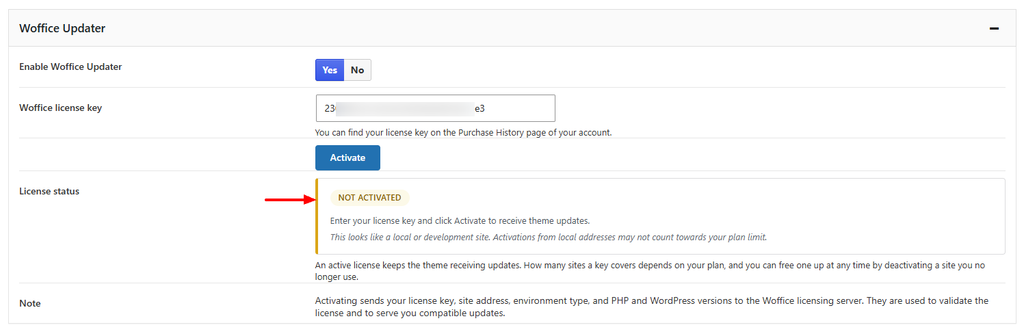

In Woffice V6, you can now carry out activation for all products while using an “All Access Pass” license key.
This guide explains what the All Access Pass does, how to activate it from the Woffice settings, how to confirm that the installed add-ons licenses are activated, and how to deactivate the pass if you need to manage add-on licenses individually.
What is An All Access Pass
An All Access Pass license key acts as the master license key for all your Woffice V6 products. This includes the theme and addons in place, depending on the plan that you purchased.
Rather than entering a separate license key for each covered product, the All Access Pass provides one central activation point for the Woffice V6 theme and the add-ons included in your plan. This makes license management more straightforward because the activation is handled through the Woffice Updater settings. The pass applies to products covered by the purchased plan.
Advantage of an All Access Pass
- With an all access pass, the activation is only done once from the Theme Options, and it applies to all your addons and V6 theme. You hence do not need to carry out individual activation to all addons and the theme. This centralized process can also make it easier to check the status of the license from one place instead of repeating the activation process across several product screens.
- You get to receive compatible updates to the products. Keeping the license active allows the theme to receive compatible product updates.
How to Carry out Activation using an All Access Pass
In order to carry out activation of your products, you will need to carry out the following:
1. Navigate to the Woffice > Theming Options > Theme Extensions > Woffice Updater section
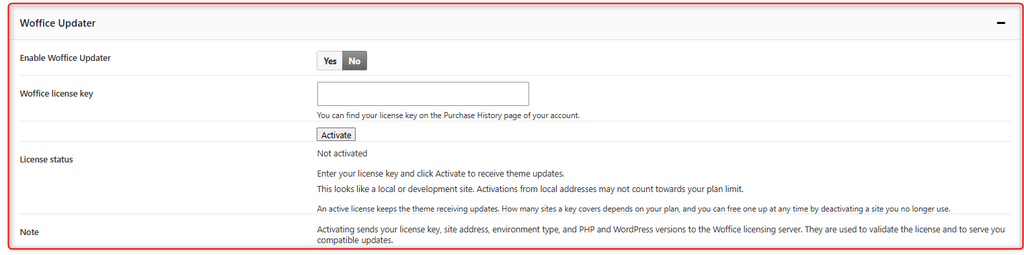
2. Turn on the option “Enable Woffice Updater”
3. Paste your license key within the “Woffice License key” field and save your changes
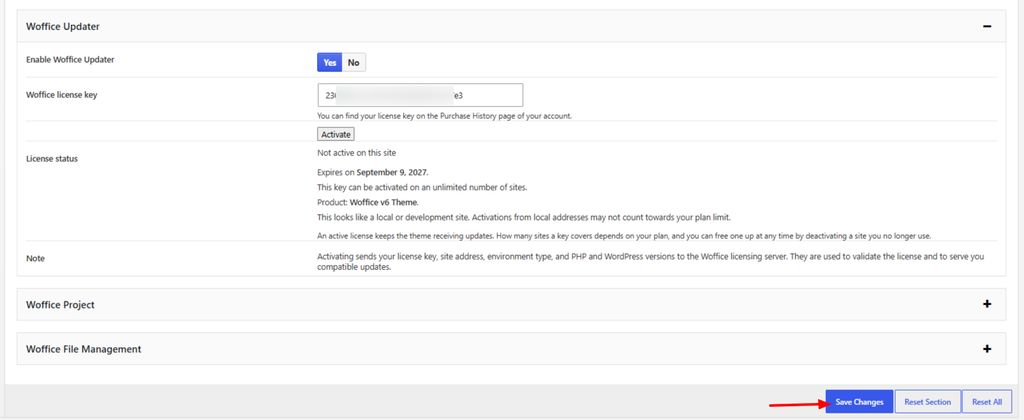
Make sure you enter the “All Access Pass key” in this field, rather than a key intended for a different product.
4. Reload the Theme Options page. Reloading the page ensures you return to the updater settings after saving the license key. Continue from the Woffice Updater section rather than starting the process again.
5. Still within the Woffice Updater section, click on the “Activate” button to activate the license. The Activate button submits the key for activation on the current site.
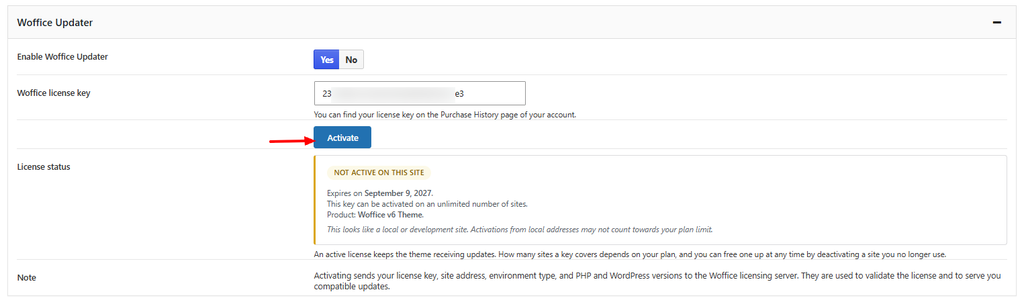
6. Await the “addons unlocking” process to finalize, which is illustrated by the progress bar
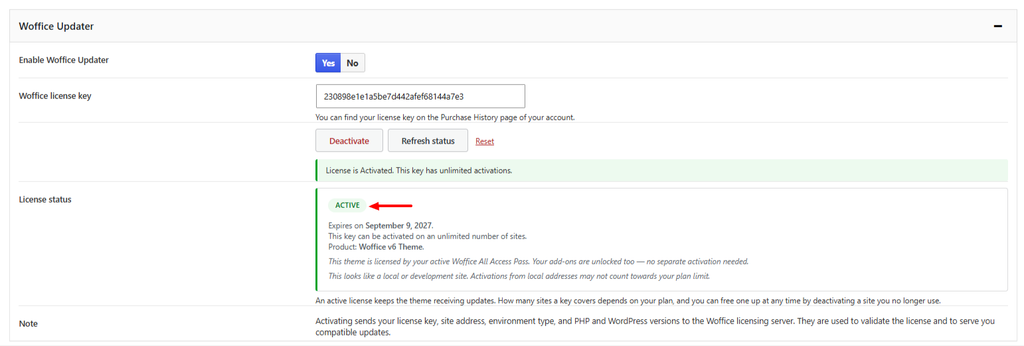
7. Once the license is activated, the license status should now be marked as “Active” as seen here:
Verifying the Addons License are Active
You can verify whether the addons are unlocked after activation. This additional check is useful because it confirms not only the status shown in the updater, but also how the installed add-ons recognize the pass. To do so:
1. Navigate to the Woffice > Plugin License section
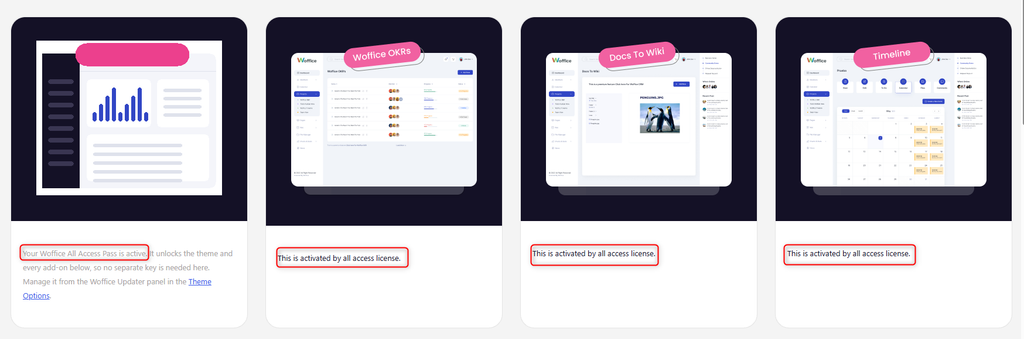
2. Within the new All Access card, you should have a view of the statement “Your Woffice All Access Pass is active.”, and on the individual addons that you have installed in your site, the message should be “This is activated by all access license.”, as illustrated below:
Deactivating the All Access Pass License Key
In a case where you would wish to activate the individual licenses on the addons, you can choose to disable an activated “All Access Pass” key from your site. To do so, you will need to:
1. Navigate to the Woffice > Theming Options > Theme Extensions > Woffice Updater
2. Click on the “Deactivate” button on the Woffice license key field
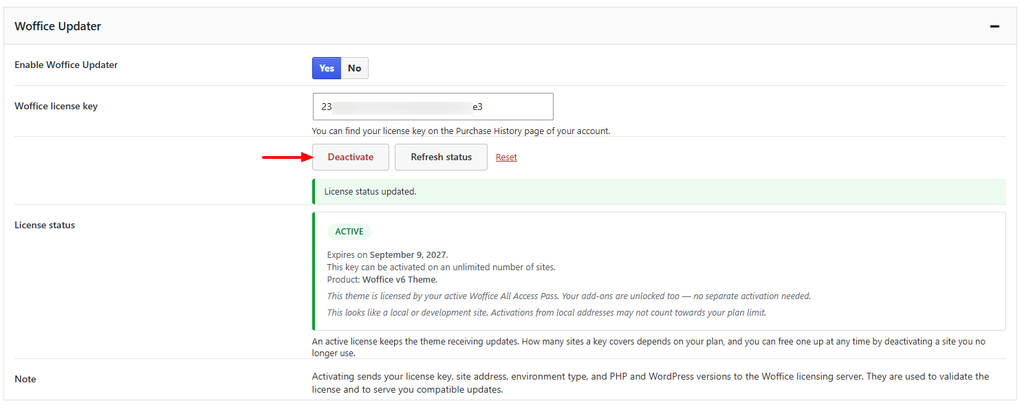
Once this is done, the license status should now be set to “Not activated” as seen below: